![Intricare [Logo]](https://webimg.intricare.net/wp-content/uploads/2022/10/10123727/Intricare-Logo.png)
Setting up your Android tablet or device in kiosk mode can solve one of the biggest headaches in business and education: uncontrolled user access.
Whether you run a retail store, a school, a logistics company, or a customer-facing business, letting users tamper with device settings, install apps, or access unrelated content can ruin the experience—and sometimes compromise security. That’s where Android kiosk mode comes in.
Kiosk mode allows you to lock your Android tablet or device into a single app or a controlled set of apps, restricting access to everything else. From information kiosks and digital signage to fieldwork tablets and learning devices, kiosk setup enables a secure, focused user experience—no more distractions, risks, or unnecessary support calls.
In this blog, we’ll explore how to configure Android kiosk mode, the key features that make it effective, and step-by-step setup instructions for different use cases. Whether you’re setting up a single-app kiosk or a multi-app kiosk, this guide will walk you through everything.
What Is Android Kiosk Mode and Why Does It Matter
Android kiosk mode is a restrictive mode that allows only selected apps to run on a device. This means users can’t access device settings, other apps, the home screen, or the status bar, ensuring that the device is used exactly how you want it to be.
You can use Android kiosk mode on smartphones, Android tablets, and even rugged mobile devices. It’s a secure way to prevent unauthorized access, increase productivity, and secure Android devices in public or semi-public environments.
Some common use cases include:
- Digital signage in malls and airports
- Information kiosks in museums or lobbies
- Retail POS systems
- Educational tablets for classroom learning
- Field service apps for logistics and warehouse teams
By limiting user access, businesses can maintain control and reduce device misuse and IT overhead.
How Do I Install a Kiosk Browser on My Android Phone?
To install Kiosk Browser, one of the most popular apps for setting up kiosk mode on Android, follow these steps:
- Open Google Play Store on your device.
- Type “Kiosk Lockdown (Go Bowser)” in its search box.
- Tap Install and open the app.
- Set the app as the default launcher when prompted.
- Use the settings menu to configure access, kiosk settings, app permissions, and security features.
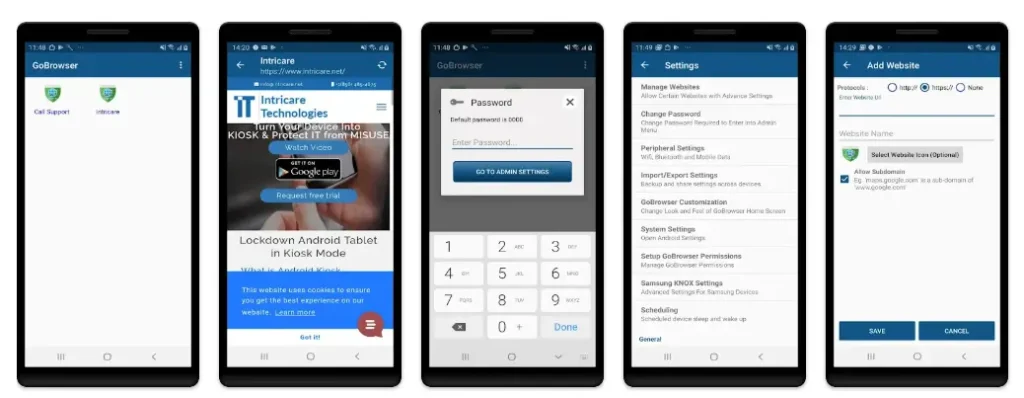
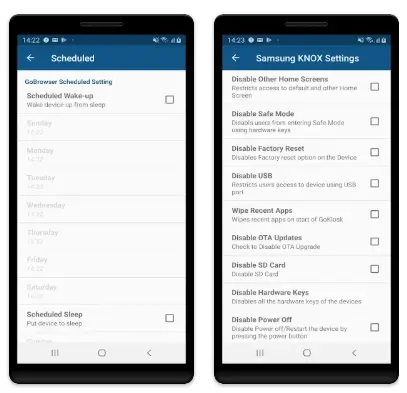
Kiosk Browser allows you to configure your device in single-app or multi-app kiosk mode, depending on your needs.
Key Features of Android Kiosk Mode
Let’s break down the key features of kiosk mode that make it so powerful for device management:
- Single or Multi-App Configuration
Kiosk mode allows the device to run:
- A single application only (for high control use cases)
- A limited set of applications in multi-app mode (for flexible workflows)
In both cases, users can only access approved apps.
- Device Management and Control
Kiosk mode allows IT admins to:
- Lock the device to a specific kiosk application
- Prevent access to system settings
- Disable system navigation, notifications, and status bar
- Block the power button or restart
- Remote Administration via MDM
Many businesses use MDM (Mobile Device Management) or Android Enterprise solutions to:
- Enroll devices remotely
- Push configuration settings
- Enforce kiosk lockdown policies
- Monitor device status and limit access
Solutions like Samsung Knox, Google Android Management, or third-party tools enable seamless Android device management.
- Security and Access Control
With kiosk mode, you can:
- Prevent unauthorized access
- Restrict Wi-Fi and Bluetooth settings
- Set up a password-protected exit
- Auto-lock after minutes of inactivity
These features ensure the kiosk experience is always controlled and safe.
5. Hospitality Sector: Improving Guest Services Through Automation
How Do I Install a Kiosk Browser on My Android Phone?
3. Healthcare Sector: Securing Patient Data & Information Access
In the healthcare space, kiosk lockdown software helps protect sensitive patient data while streamlining access to critical services.
Interactive kiosk devices in hospitals and clinics:
- Allow patients to check in or view appointment details through a self-service kiosk
- Help streamline internal operations by restricting staff device usage to medical apps
- Prevent unauthorized access to patient records
- Ensure compliance with data privacy standards
Deploying kiosks in healthcare enhances the customer experience while ensuring that devices stay compliant with the highest standards of security. Medical staff can focus more on care and less on technical distractions.
Step 1: Choose the Right Device and App
Make sure you’re using a device running Android 5.0 or above. For app-based kiosk mode, install a trusted app like:
- GoKiosk
- SureLock
- Scalefusion
- Hexnode MDM
- Android’s built-in screen pinning or lockdown mode
You’ll also want a specific app or set of apps in mind before setup.
Step 2: Enable Developer and Admin Settings
- Enable developer options and device admin access
- Grant app permissions to control system UI and settings
- Set the selected app as the default launcher
Step 3: Configure Single App or Multi-App Kiosk Mode
Depending on your use case, choose:
- Single app kiosk (ideal for digital signage, POS, or surveys)
- Multi-app kiosk (ideal for retail, education, or enterprise workflows)
Multi-app kiosk mode allows access to a curated set of apps only and locks everything else out.
Step 4: Apply Kiosk Settings
Using the kiosk app or MDM tool, configure:
- Launcher settings
- App configuration
- Access permissions
- Wi-Fi and device settings
- Restrictions like disabling system UI and factory reset prevention
Step 5: Test and Deploy
Once your Android kiosk is configured:
- Test it in real-world conditions
- Validate user access, app functionality, and system restrictions
- Enroll devices into your Android Enterprise Enrollment program or MDM solution for remote control
Kiosk Mode Use Cases by Industry
Let’s explore how different industries leverage Android kiosk mode:
Retail
- POS systems and product catalogs using tablet kiosks
- Limited access to only POS or catalog apps
- Prevent customers from accessing other settings
Education
- Android tablets locked to educational apps
- Multi-app kiosk for students: access only learning apps, test platforms, and browsers
Logistics and Field Services
- Mobile devices running field service or warehouse apps
- Prevent distractions or misuse by locking to a single application
Healthcare
- Patient check-in kiosk devices
- Secure Android configurations to protect patient data
Corporate Training
- Self-service learning stations
- Devices using Android kiosk mode to run training apps and block other content
Advanced Configuration: Using MDM for Kiosk Lockdown
If you’re managing dozens or hundreds of devices, a mobile device management solution is essential. MDM platforms like Scalefusion, Hexnode, or Esper allow:
- Remote enrollment and Android configuration
- Real-time status updates and logs
- Mass deployment of apps
- Remote reboot or factory reset prevention
- Full kiosk lockdown from a centralized dashboard
You can also enable or disable this configuration remotely, schedule updates, and restrict users from accessing unauthorized content or settings.
Best Practices for Using Android Kiosk Devices
- Choose the Right Brand: Use reliable Android tablets or mobile devices from trusted brands like Samsung, Lenovo, or Zebra.
- Lock the Device: Use apps or built-in features to lock the device to only approved apps.
- Disable System Access: Hide the status bar, block system navigation, and disable settings changes.
- Regularly Update Your Configuration: Periodically check your app configuration to ensure compliance with your use case.
- Secure Exit Strategy: Allow only admins with passwords or pins to leave kiosk mode.
Conclusion
Whether you’re running a retail store, school, hospital, or warehouse, Android kiosk mode is a reliable way to simplify user access, reduce misuse, and improve productivity.
By properly configuring your Android device—whether through a single app kiosk or multi-app mode—you create a secure, focused environment tailored to your unique kiosk experience. With MDM solutions, you can scale your setup across multiple devices and locations.
If you haven’t yet explored kiosk mode on Android, now’s the time. Enable Android to do more—securely and smartly.
FAQs
Yes, Android supports basic kiosk mode via screen pinning in Settings > Security. However, for a full kiosk lockdown, you’ll need a third-party kiosk app or MDM solution.
Yes, but only by an authorized admin with proper permissions. You can disable kiosk mode through settings (if accessible) or your MDM dashboard.
Yes, Android Enterprise offers a built-in Android feature for kiosk deployment using managed Google Play and MDM tools.